

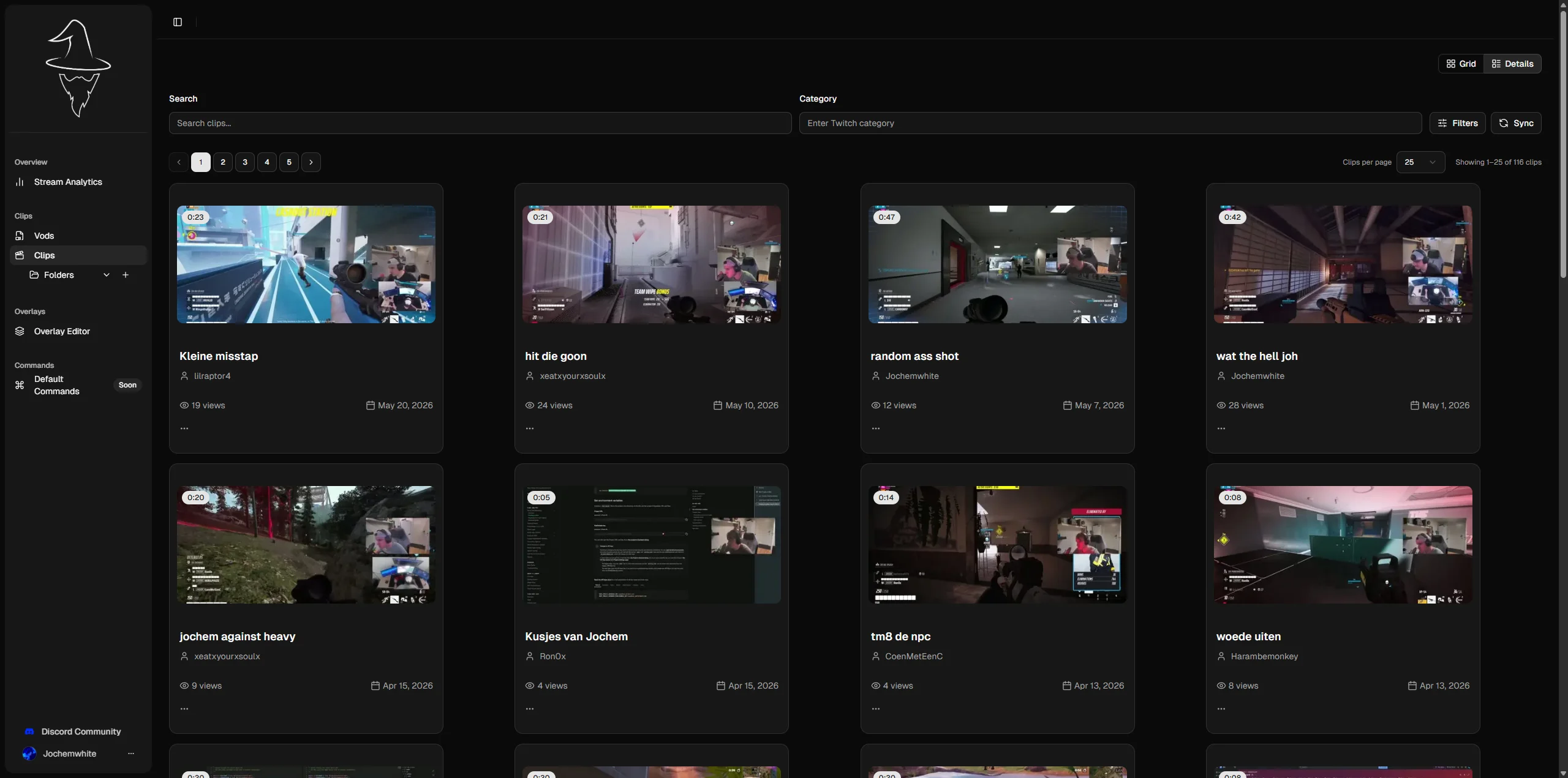
The clips page: filter bar up top, folders in the sidebar.
Grid or details
Top right of the page, a toggle switches between two layouts:- Grid: thumbnail cards. Good for skimming visually.
- Details: a denser, row-based list. Good when you’re scanning titles, views, and dates.
Pulling in new clips
The Sync button next to the filters fetches your latest clips from Twitch on demand. Handy if you turned auto-sync off during onboarding, or you want the last few minutes of a stream in right now instead of waiting for the end-of-stream pass.Where to next
- Filtering your clips — narrow a wall of thumbnails down to the one moment you’re after.
- Folders — file clips away so you find them later instead of scrolling past them.