Connect Twitch, set three preferences, pull in your clips. About two minutes.
The first time you sign in, StreamWizard runs you through a short setup. Six
steps, no essay to read, and you land on your clips at the end. Here’s what each
step actually does.
Head to streamwizard.org and hit Login with Twitch.
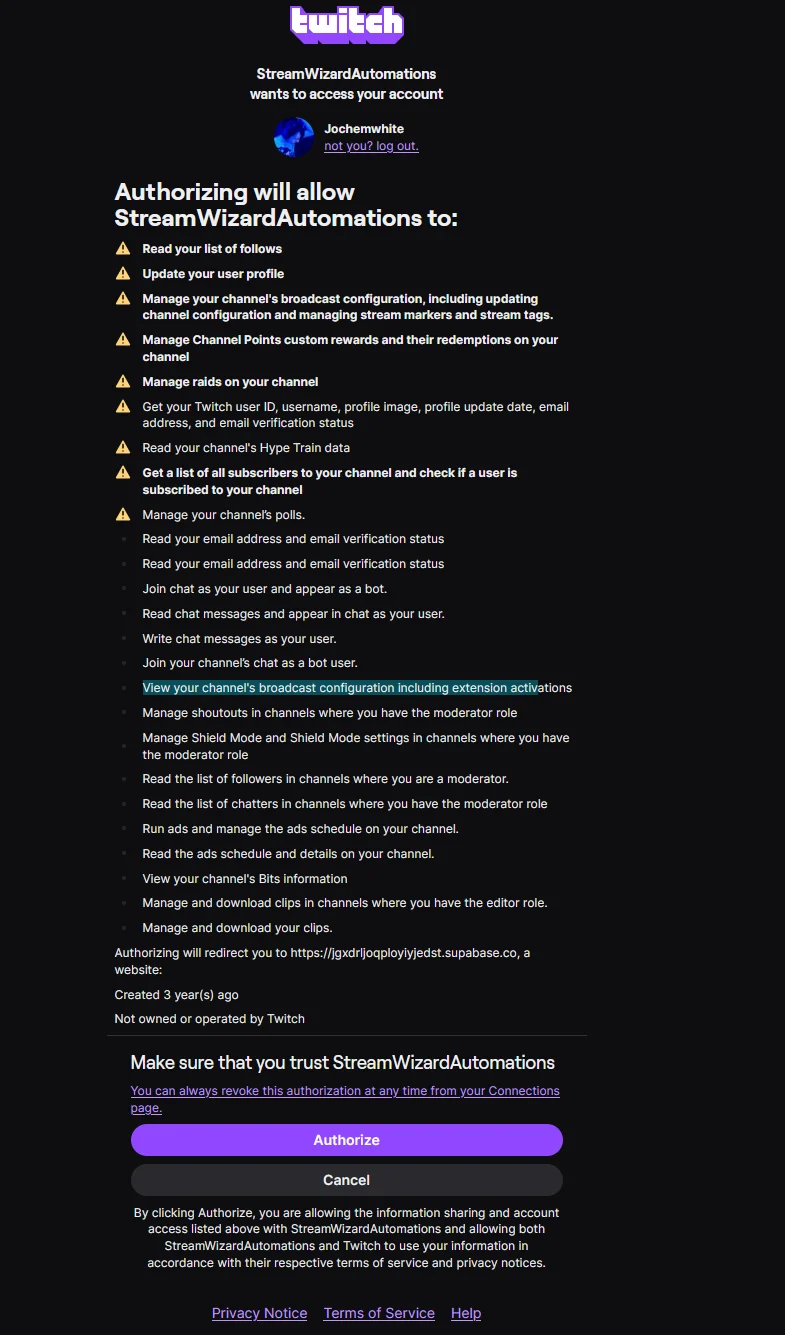
You authorize StreamWizard from the Twitch login screen. We ask for the
permissions we need to read your clips and run your chat, nothing more. You’re
back in a few seconds.
After you sign in for the first time, a setup window opens. You can’t dismiss it
by clicking away. Work through it with Next (or just press Enter), and
Back if you want to change something. The progress bar at the bottom tracks
where you are. Every toggle here also lives in Settings, so nothing you pick
is permanent.
The setup window walks you through six quick steps.
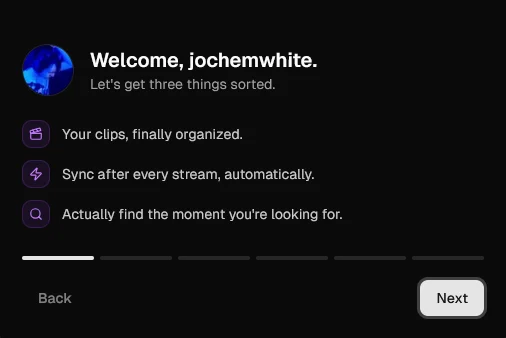
1
Welcome
A quick hello by name and the three things StreamWizard sets out to fix:
your clips finally organized, clips synced while you stream, and actually
finding the moment you’re looking for. Nothing to configure, just hit
Next.
2
Auto-sync clips
A single toggle: Auto-sync clips. Leave it on and StreamWizard checks
Twitch every five minutes while you’re live, pulls in new clips, then does
one last pass when you go offline. No manual sync, no forgetting. Turn it
off if you’d rather pull clips in yourself.
3
Memes
A toggle for whether StreamWizard sprinkles memes through the UI. They’re
stupid, they’re great, and you can turn them off if you’re using the app at
work. Cosmetic only. It changes nothing about how clips or syncing work.
4
Show stream stats
Controls what your dashboard leads with. On, you get viewer stats: peak and
average viewers and a minute-by-minute chart. Off, the dashboard shows your
last stream’s clips instead, so peak-viewer numbers can’t mess with your
head mid-grind. Change it any time in Settings.
5
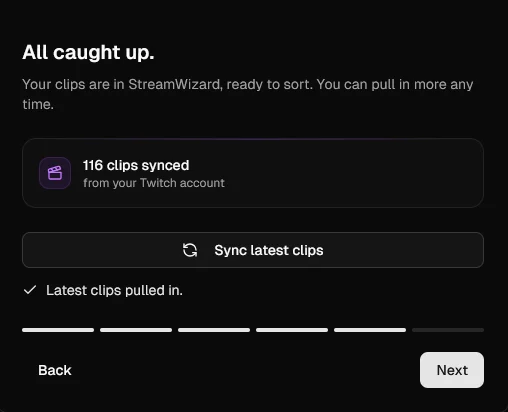
Pull in your clips
This is where StreamWizard actually grabs your Twitch clips. What you see
depends on your account:
No clips yet: hit Grab my clips to import them now, or skip it. If
you left auto-sync on, they come in on their own during your next stream.
We already have some: hit Sync latest clips to pull in anything
new since last time.
Already up to date: nothing new to fetch, and we tell you so.
Big channels take a minute to import, so go grab coffee. This step is
optional; you can always sync later from the clips page.
Pull your Twitch clips in during setup, or skip and sync later.
6
You're all set
Clips sorted, sync configured. The last step is an invite to the
StreamWizard Discord: bug reports,
feature requests, and streamers complaining about chat. Hit Take me to my
clips to finish; your preferences save and you land on your clips. 📁
Every preference from setup (auto-sync, memes, stream stats) lives in
Settings. Flip any of them whenever you want. To pull in clips again, use the
sync button on the clips page.