> ## Documentation Index
> Fetch the complete documentation index at: https://docs.streamwizard.org/llms.txt
> Use this file to discover all available pages before exploring further.
# Onboarding
> Connect Twitch, set three preferences, pull in your clips. About two minutes.
The first time you sign in, StreamWizard runs you through a short setup. Six
steps, no essay to read, and you land on your clips at the end. Here's what each
step actually does.
## Connect your Twitch account
Head to [streamwizard.org](https://streamwizard.org) and hit **Login with Twitch**.
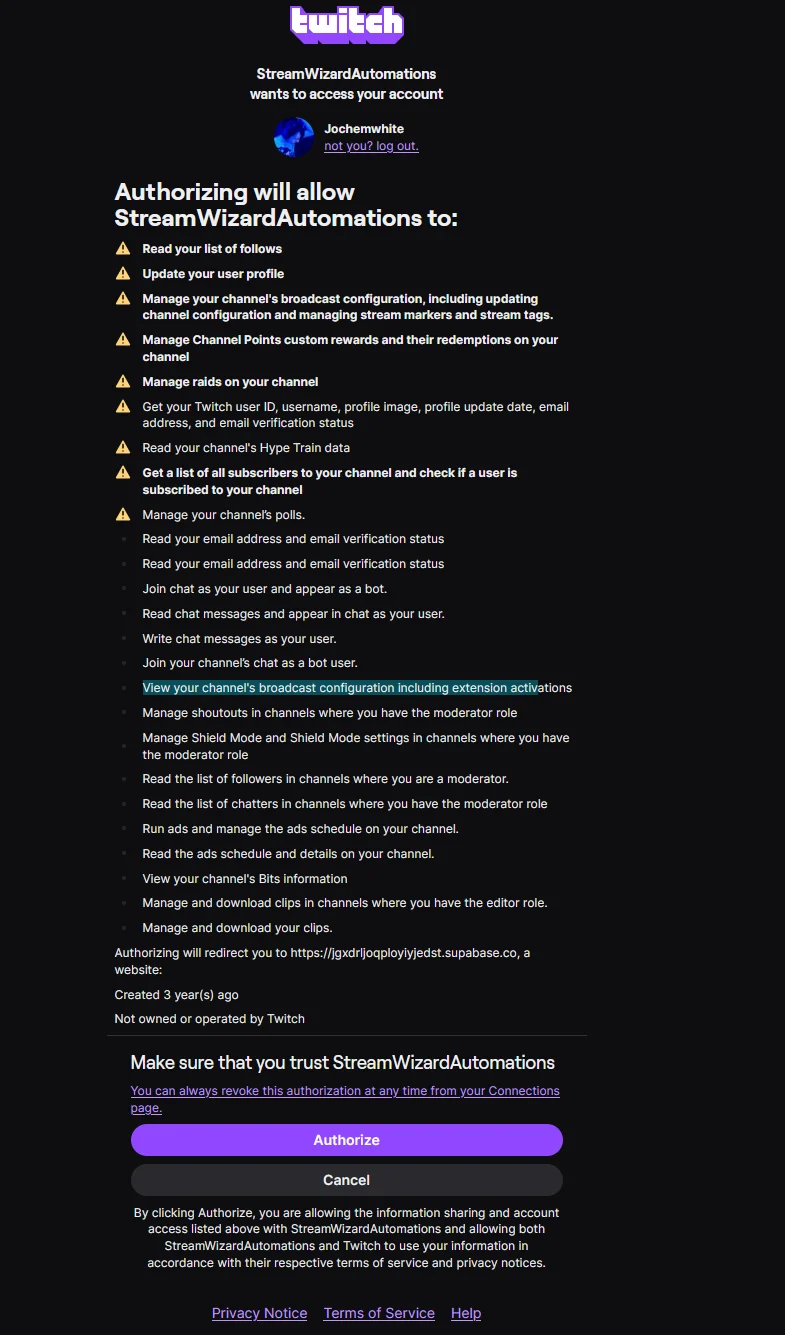
You authorize StreamWizard from the Twitch login screen. We ask for the
permissions we need to read your clips and run your chat, nothing more. You're
back in a few seconds.
 ## The setup steps
After you sign in for the first time, a setup window opens. You can't dismiss it
by clicking away. Work through it with **Next** (or just press **Enter**), and
**Back** if you want to change something. The progress bar at the bottom tracks
where you are. Every toggle here also lives in **Settings**, so nothing you pick
is permanent.
## The setup steps
After you sign in for the first time, a setup window opens. You can't dismiss it
by clicking away. Work through it with **Next** (or just press **Enter**), and
**Back** if you want to change something. The progress bar at the bottom tracks
where you are. Every toggle here also lives in **Settings**, so nothing you pick
is permanent.
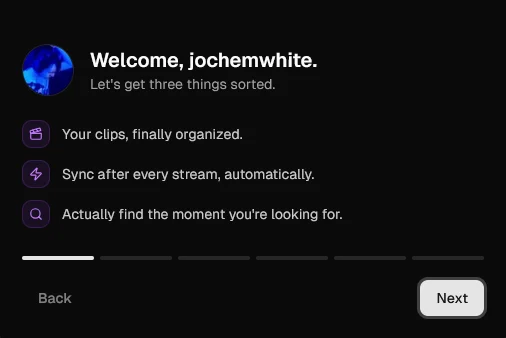 A quick hello by name and the three things StreamWizard sets out to fix:
your clips finally organized, auto-sync after every stream, and actually
finding the moment you're looking for. Nothing to configure, just hit
**Next**.
A single toggle: **Sync clips on stream end**. Leave it on and every time
your stream ends, StreamWizard pulls in your new clips automatically. No
manual sync, no forgetting. They're just there next time you open the app.
Turn it off if you'd rather pull clips in yourself.
A toggle for whether StreamWizard sprinkles memes through the UI. They're
stupid, they're great, and you can turn them off if you're using the app at
work. Cosmetic only. It changes nothing about how clips or syncing work.
Controls what your dashboard leads with. On, you get viewer stats: peak and
average viewers and a minute-by-minute chart. Off, the dashboard shows your
last stream's clips instead, so peak-viewer numbers can't mess with your
head mid-grind. Change it any time in Settings.
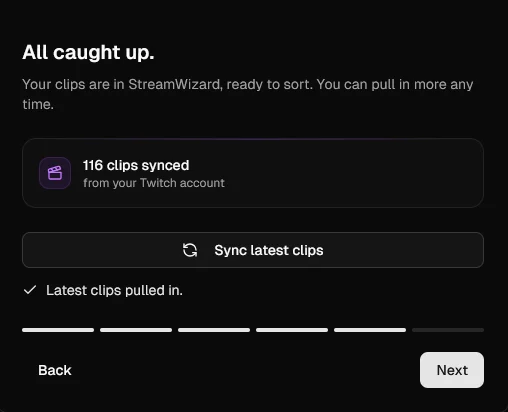
This is where StreamWizard actually grabs your Twitch clips. What you see
depends on your account:
* **No clips yet:** hit **Grab my clips** to import them now, or skip it. If
you left auto-sync on, they'll come in after your next stream anyway.
* **We already have some:** hit **Sync latest clips** to pull in anything
new since last time.
* **Already up to date:** nothing new to fetch, and we tell you so.
Big channels take a minute to import, so go grab coffee. This step is
optional; you can always sync later from the clips page.
A quick hello by name and the three things StreamWizard sets out to fix:
your clips finally organized, auto-sync after every stream, and actually
finding the moment you're looking for. Nothing to configure, just hit
**Next**.
A single toggle: **Sync clips on stream end**. Leave it on and every time
your stream ends, StreamWizard pulls in your new clips automatically. No
manual sync, no forgetting. They're just there next time you open the app.
Turn it off if you'd rather pull clips in yourself.
A toggle for whether StreamWizard sprinkles memes through the UI. They're
stupid, they're great, and you can turn them off if you're using the app at
work. Cosmetic only. It changes nothing about how clips or syncing work.
Controls what your dashboard leads with. On, you get viewer stats: peak and
average viewers and a minute-by-minute chart. Off, the dashboard shows your
last stream's clips instead, so peak-viewer numbers can't mess with your
head mid-grind. Change it any time in Settings.
This is where StreamWizard actually grabs your Twitch clips. What you see
depends on your account:
* **No clips yet:** hit **Grab my clips** to import them now, or skip it. If
you left auto-sync on, they'll come in after your next stream anyway.
* **We already have some:** hit **Sync latest clips** to pull in anything
new since last time.
* **Already up to date:** nothing new to fetch, and we tell you so.
Big channels take a minute to import, so go grab coffee. This step is
optional; you can always sync later from the clips page.
 Clips sorted, sync configured. The last step is an invite to the
[StreamWizard Discord](https://discord.gg/streamwizard): bug reports,
feature requests, and streamers complaining about chat. Hit **Take me to my
clips** to finish; your preferences save and you land on your clips. 📁
## Changed your mind later?
Every preference from setup (auto-sync, memes, stream stats) lives in
[Settings](/settings). Flip any of them whenever you want. To pull in clips again, use the
sync button on the [clips page](/clips/overview).
## Stuck?
Something not loading? Check your Twitch connection in **Settings** first. It
fixes most issues. Still broken? Reach out on
[Discord](https://discord.gg/streamwizard).
Clips sorted, sync configured. The last step is an invite to the
[StreamWizard Discord](https://discord.gg/streamwizard): bug reports,
feature requests, and streamers complaining about chat. Hit **Take me to my
clips** to finish; your preferences save and you land on your clips. 📁
## Changed your mind later?
Every preference from setup (auto-sync, memes, stream stats) lives in
[Settings](/settings). Flip any of them whenever you want. To pull in clips again, use the
sync button on the [clips page](/clips/overview).
## Stuck?
Something not loading? Check your Twitch connection in **Settings** first. It
fixes most issues. Still broken? Reach out on
[Discord](https://discord.gg/streamwizard).