> ## Documentation Index
> Fetch the complete documentation index at: https://docs.streamwizard.org/llms.txt
> Use this file to discover all available pages before exploring further.
# Switcher status on your phone
> Put the auto switcher's status on your IRL Pro preview, where only you can see it.
While you're out filming you can't see your OBS. So you don't know which scene
viewers are on, or that your bitrate has been sliding for three seconds and a
fallback is about to happen.
The **Auto switcher monitor** overlay fixes that. You create it in StreamWizard,
then add its URL to IRL Pro as a web overlay in **Preview** mode: it renders on
your phone screen and never goes out on stream. It stays out of your way while
things are fine, and appears the moment a metric starts counting bad polls.
## 1. Create the overlay
Go to **Dashboard → Overlay Editor**, hit **New Overlay**, name it, keep the
type on **OBS**, and pick **Auto switcher monitor** under **Start from**.
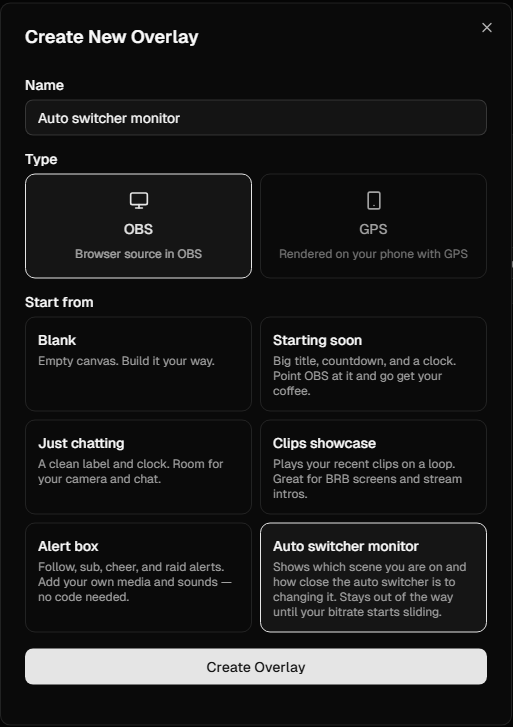 You get the browser source URL right away. Copy it. You'll paste it into
IRL Pro in a minute, and the phone keyboard is not where you want to be
typing it, so send it to yourself with the Discord DM button or paste it
into a note.
You get the browser source URL right away. Copy it. You'll paste it into
IRL Pro in a minute, and the phone keyboard is not where you want to be
typing it, so send it to yourself with the Discord DM button or paste it
into a note.
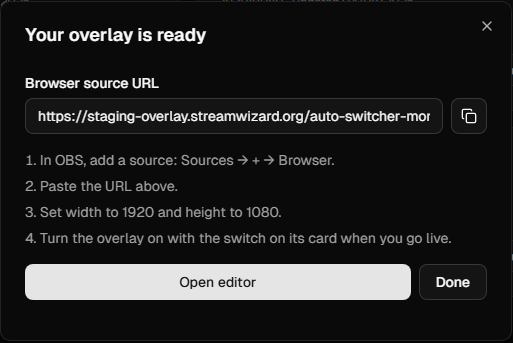 Treat that URL like a password. Anyone who has it can watch your connection
stats.
## 2. Check how it looks
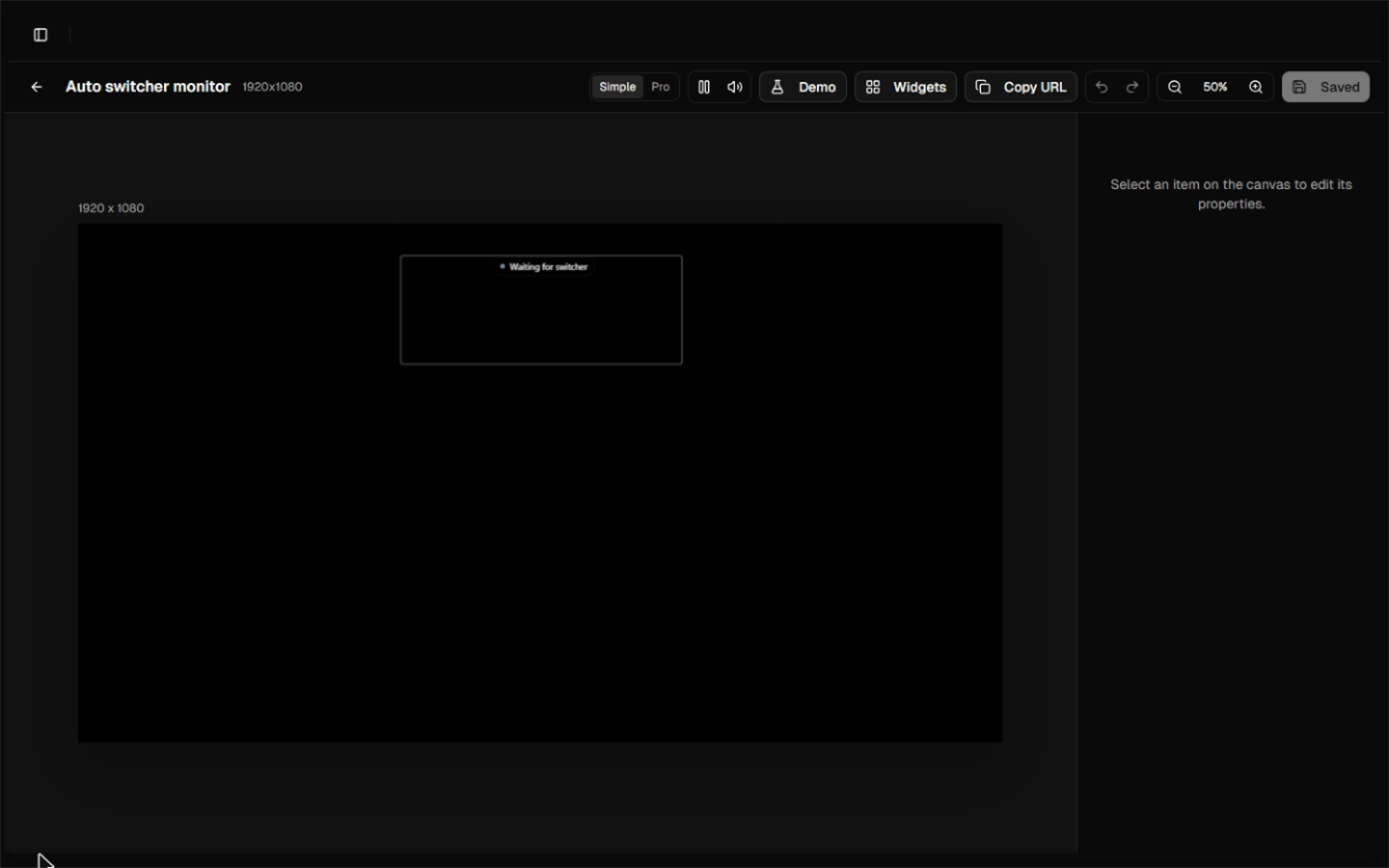
Open the editor. The widget shows "Waiting for switcher" until real data
arrives, which is normal with nothing streaming.
Treat that URL like a password. Anyone who has it can watch your connection
stats.
## 2. Check how it looks
Open the editor. The widget shows "Waiting for switcher" until real data
arrives, which is normal with nothing streaming.
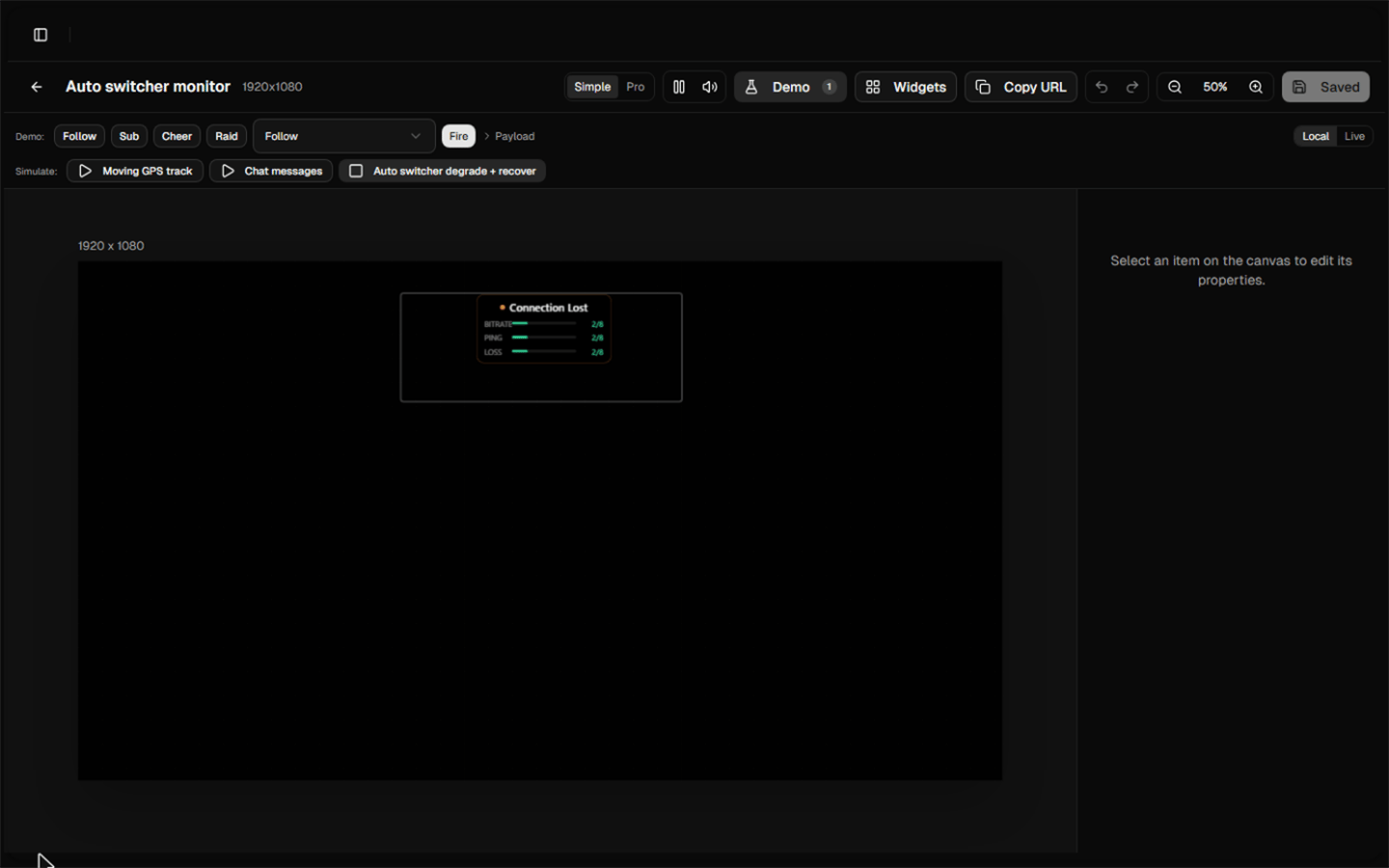
 To see it with data, open **Demo** in the toolbar and run **Auto switcher
degrade + recover**. The widget fills in with the scene name, one bar per
metric, and the poll countdown.
To see it with data, open **Demo** in the toolbar and run **Auto switcher
degrade + recover**. The widget fills in with the scene name, one bar per
metric, and the poll countdown.
 Click the widget to get its settings on the right:
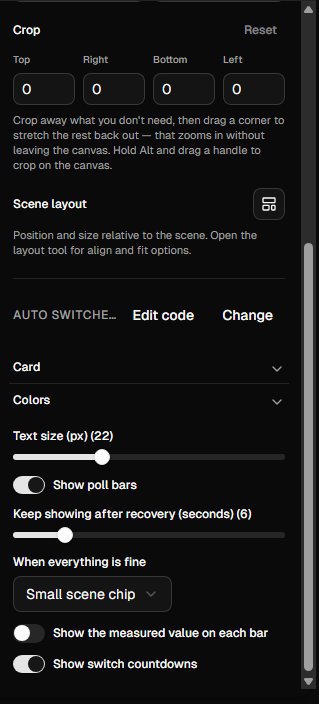 * **When everything is fine**: `Small scene chip` keeps a tiny scene label on
screen so you always know where you are. `Hide the widget completely` gets
you a clean preview and only shows up when something is wrong.
* **Text size**: the template ships at 22px, sized for a phone at arm's length.
Go bigger if you film in sunlight.
* **Show poll bars** and **Show switch countdowns**: leave both on. The
countdown is the useful part, it tells you how long you have before the
switch, or how long until you're back.
* **Keep showing after recovery**: seconds the card stays up after things are
good again, so you can see that you made it back.
Colors and the card background are on the widget too, if the defaults clash
with your setup.
## 3. Add it to IRL Pro
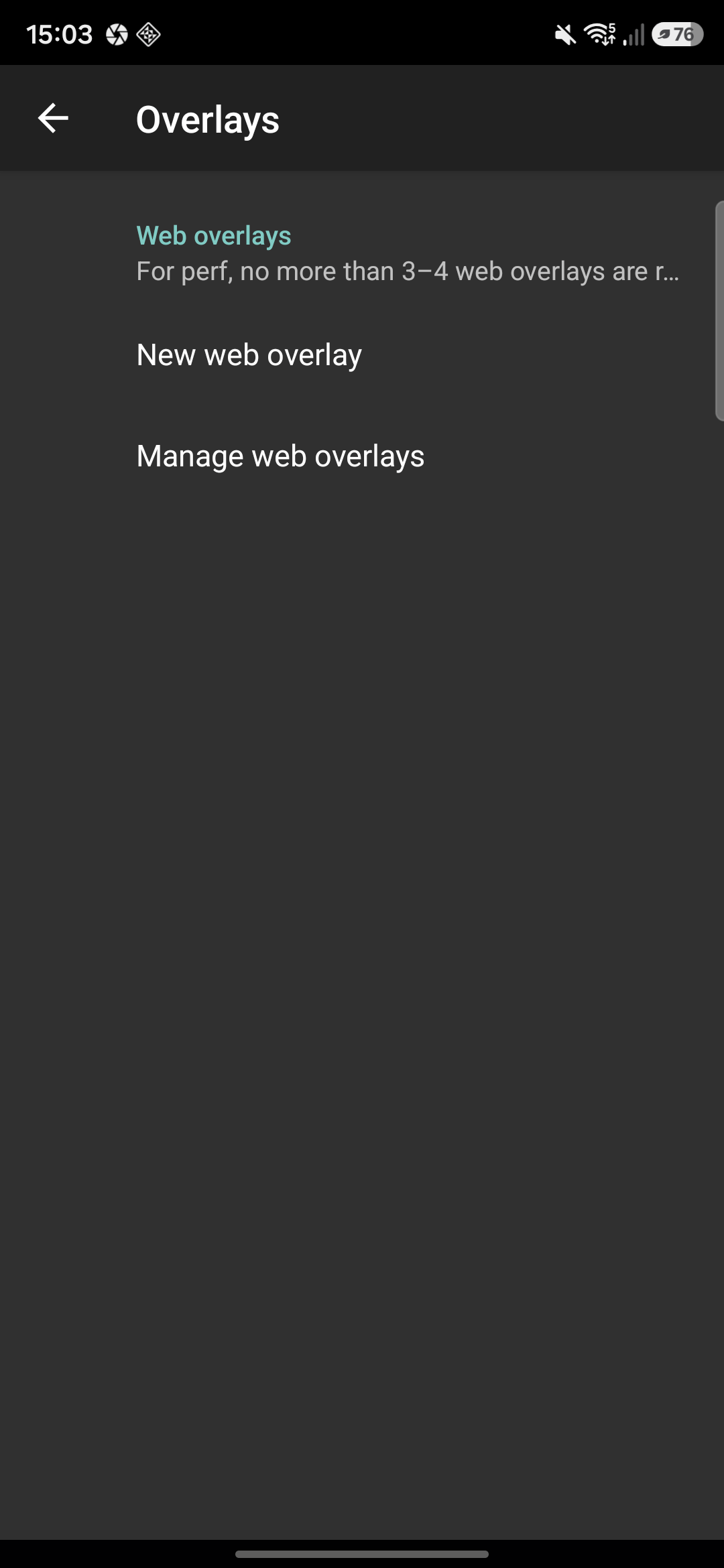
In IRL Pro: gear icon, **Overlays**, **Web Overlays**, **New web overlay**.
* **When everything is fine**: `Small scene chip` keeps a tiny scene label on
screen so you always know where you are. `Hide the widget completely` gets
you a clean preview and only shows up when something is wrong.
* **Text size**: the template ships at 22px, sized for a phone at arm's length.
Go bigger if you film in sunlight.
* **Show poll bars** and **Show switch countdowns**: leave both on. The
countdown is the useful part, it tells you how long you have before the
switch, or how long until you're back.
* **Keep showing after recovery**: seconds the card stays up after things are
good again, so you can see that you made it back.
Colors and the card background are on the widget too, if the defaults clash
with your setup.
## 3. Add it to IRL Pro
In IRL Pro: gear icon, **Overlays**, **Web Overlays**, **New web overlay**.
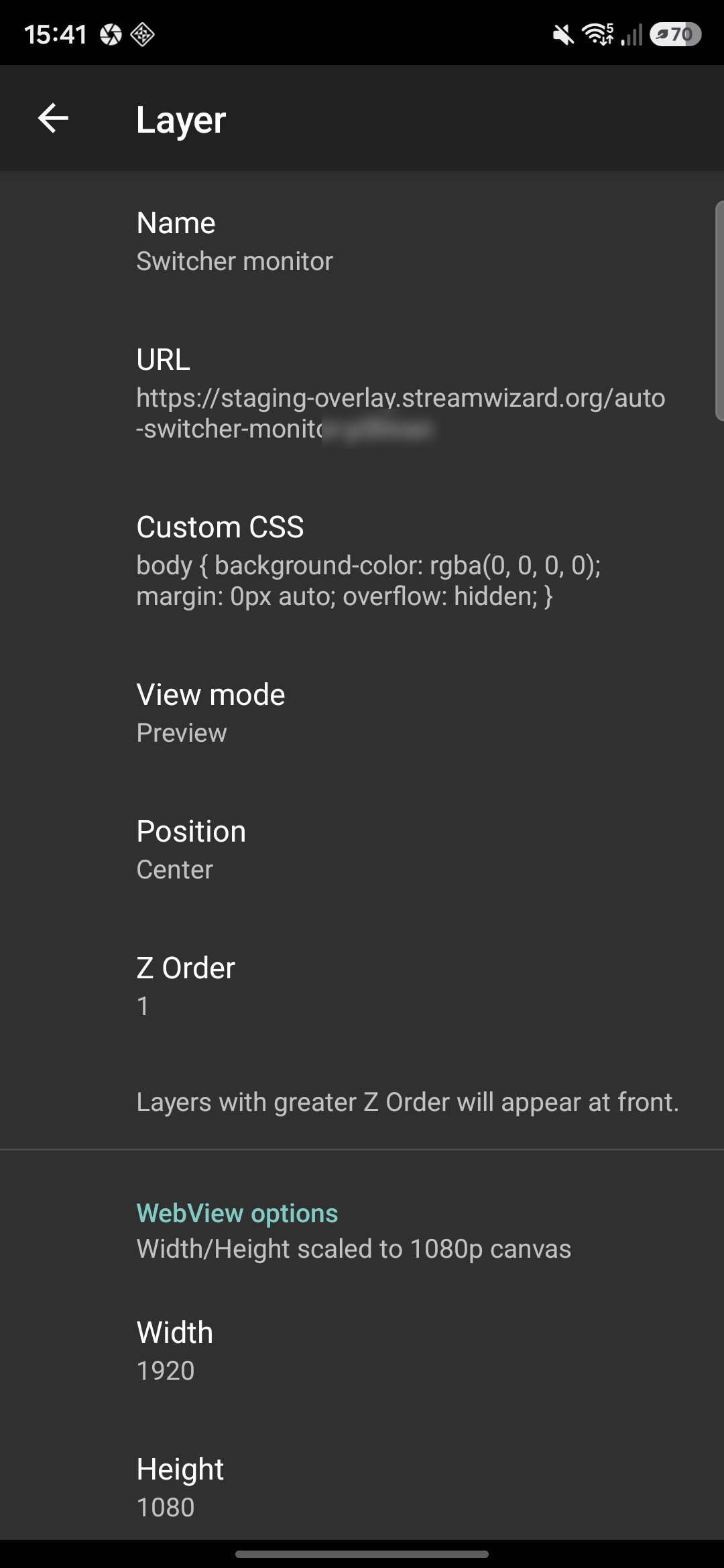
 Give it a name and paste the overlay URL. Leave **Custom CSS** as it is, it
already makes the page background transparent.
Give it a name and paste the overlay URL. Leave **Custom CSS** as it is, it
already makes the page background transparent.
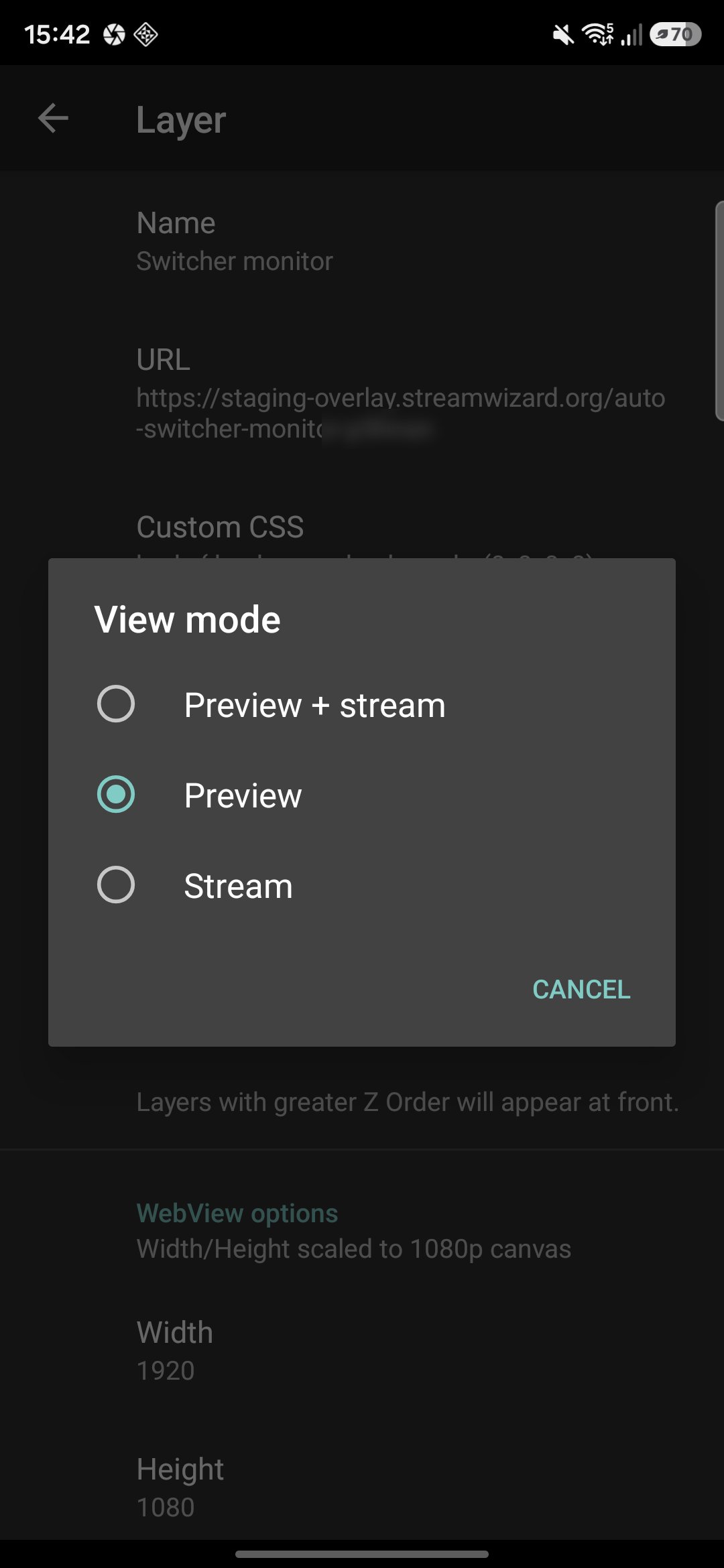
 This is the setting that matters. **Preview** draws the overlay on your
phone screen only. **Preview + stream** and **Stream** would burn it into
the video you're sending, which puts your connection stats on stream for
everyone to read.
This is the setting that matters. **Preview** draws the overlay on your
phone screen only. **Preview + stream** and **Stream** would burn it into
the video you're sending, which puts your connection stats on stream for
everyone to read.
 Under **WebView options**, set **Width** to `1920` and **Height** to
`1080`. The app defaults to 1280x720, and the overlay is built on a
1920x1080 canvas, so leaving the default renders it at the wrong scale and
in the wrong spot.
Leave **Scale in percents** at 100 and **Position** on Center. The widget
sits at the top of its own canvas, so it lands near the top of your
preview.
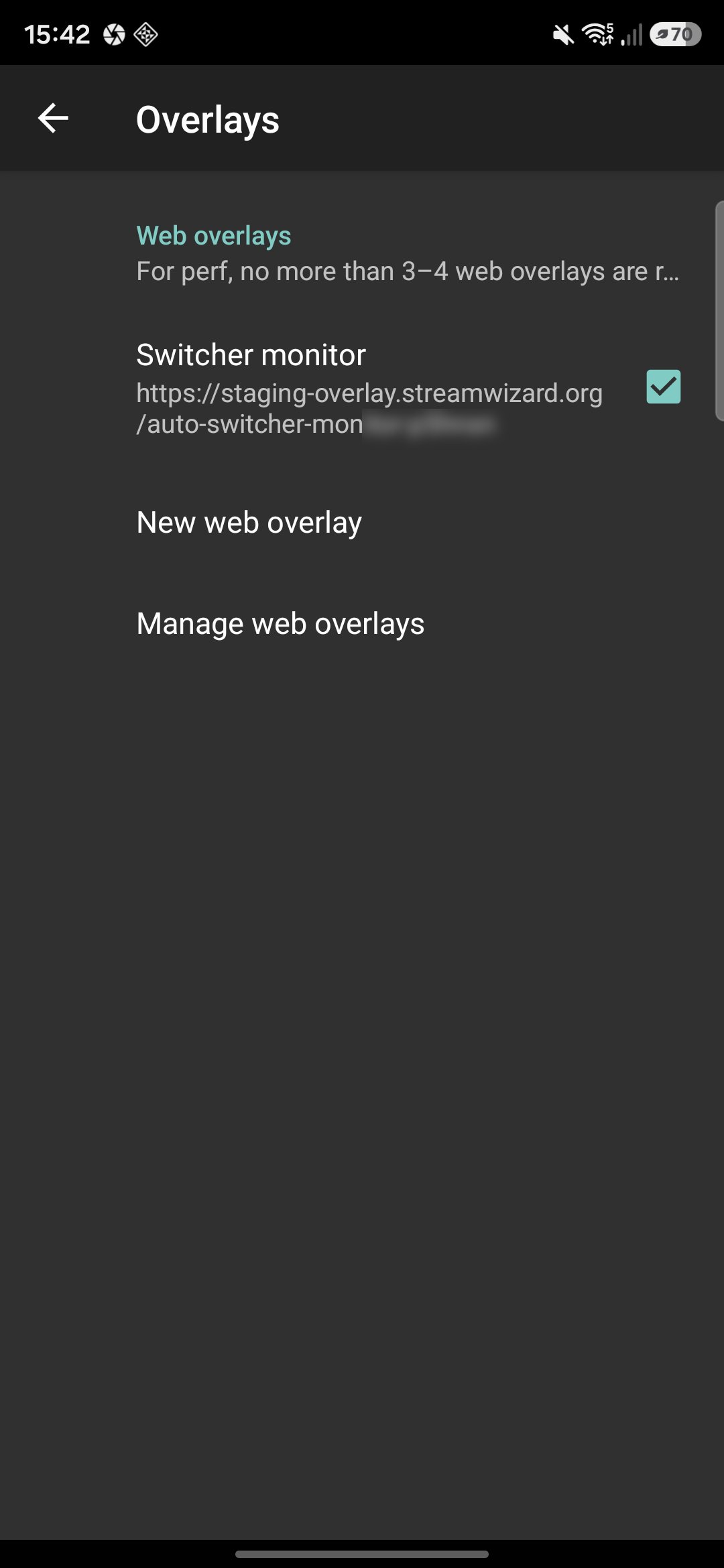
Hit **Save**, then tick the checkbox next to the overlay in the list. An
overlay that isn't ticked isn't active.
Under **WebView options**, set **Width** to `1920` and **Height** to
`1080`. The app defaults to 1280x720, and the overlay is built on a
1920x1080 canvas, so leaving the default renders it at the wrong scale and
in the wrong spot.
Leave **Scale in percents** at 100 and **Position** on Center. The widget
sits at the top of its own canvas, so it lands near the top of your
preview.
Hit **Save**, then tick the checkbox next to the overlay in the list. An
overlay that isn't ticked isn't active.
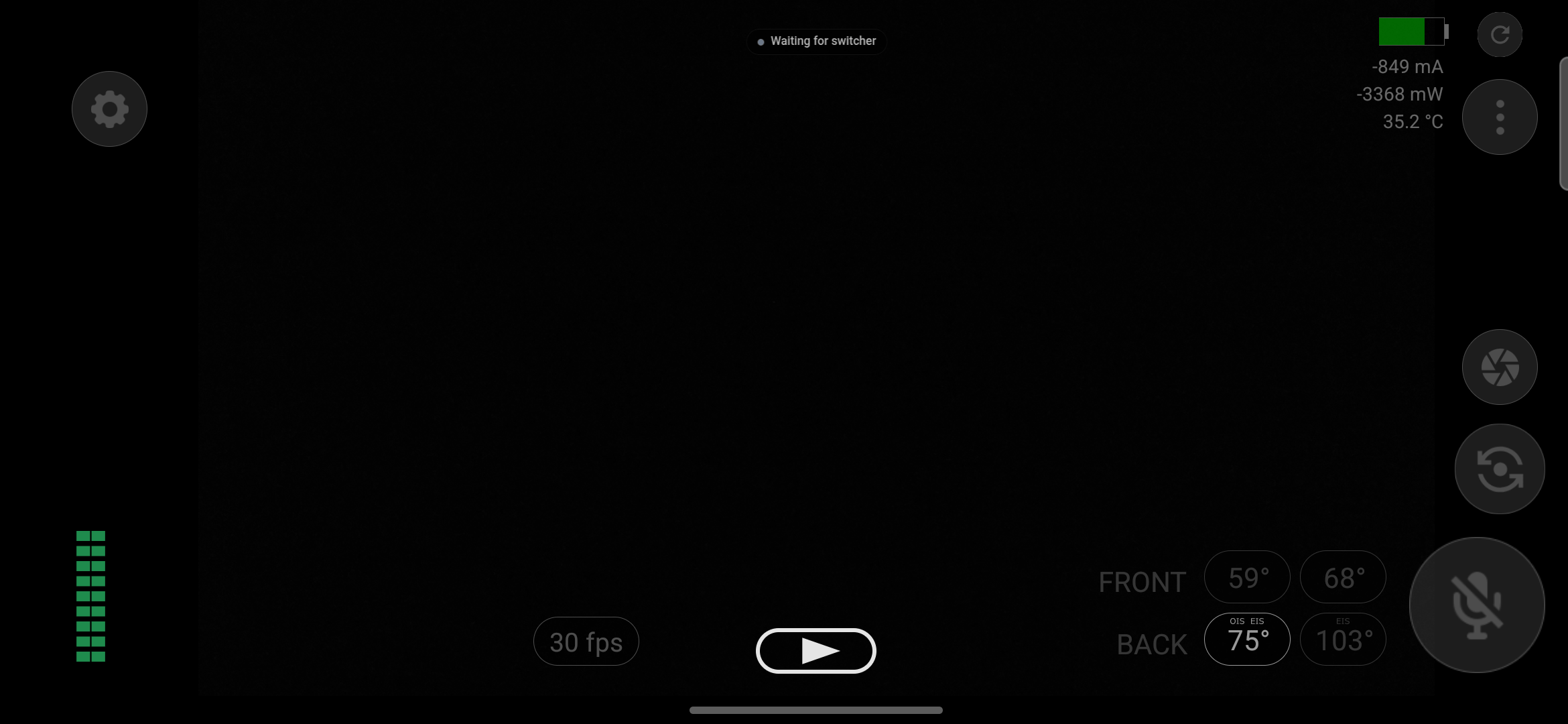
 Back on the camera screen you should see the widget within a few seconds.
"Waiting for switcher" means it connected and there's nothing to report yet.
Back on the camera screen you should see the widget within a few seconds.
"Waiting for switcher" means it connected and there's nothing to report yet.
 ## Notes
* The monitor only has something to say when the
[auto switcher](/irl/auto-switcher) is on and a stream is arriving at your
ingest. It is a window into the switcher, not a second one.
* IRL Pro recommends no more than 3 or 4 web overlays at once. Each one is a
browser on your phone, and your phone is already encoding video.
* To change any of this later: **Overlays → Web Overlays → Manage web
overlays**, then tap the overlay. Tapping it in the plain list toggles it on
and off instead of opening it.
* Editing the widget in StreamWizard reaches the phone on the next refresh of
the page, so you can tune size and colors from a laptop before you head out.
## Notes
* The monitor only has something to say when the
[auto switcher](/irl/auto-switcher) is on and a stream is arriving at your
ingest. It is a window into the switcher, not a second one.
* IRL Pro recommends no more than 3 or 4 web overlays at once. Each one is a
browser on your phone, and your phone is already encoding video.
* To change any of this later: **Overlays → Web Overlays → Manage web
overlays**, then tap the overlay. Tapping it in the plain list toggles it on
and off instead of opening it.
* Editing the widget in StreamWizard reaches the phone on the next refresh of
the page, so you can tune size and colors from a laptop before you head out.