> ## Documentation Index
> Fetch the complete documentation index at: https://docs.streamwizard.org/llms.txt
> Use this file to discover all available pages before exploring further.
# IRL Pro on Android
> Point IRL Pro at your StreamWizard ingest. And know when to use SRT versus SRTLA.
[IRL Pro](https://irlpro.app) is a free Android streaming app built for IRL.
It streams SRT and SRTLA, shows your bitrate live, and keeps going when you
lock the screen. This page gets it talking to your StreamWizard ingest.
Before you start you need an ingest key.
[Set up your cloud OBS](/irl/cloud-obs) first if you haven't.
## SRT or SRTLA
This is the one decision that matters, so here's the whole of it:
* **SRT (port 8888)** uses one network connection. Your phone on 5G, done.
If that's your setup, use SRT. Simpler, and nothing to gain from SRTLA.
* **SRTLA (port 5000)** bonds several connections into one stream: 5G plus
WiFi, or two SIMs, or a phone tethered to a backpack full of modems. The
stream survives any single connection dying. Use it when you have more
than one connection to offer.
The rule: **one connection, SRT. Two or more, SRTLA.** SRTLA with a single
connection doesn't hurt, but it doesn't help either.
Both carry your key in the `streamid`. RTMP also works if some other encoder
only speaks that, but it reports throughput only. No ping, no packet loss, so
the [auto switcher](/irl/auto-switcher) has less to work with. Stick
to SRT or SRTLA if you can.
## Set up IRL Pro
Get IRL Pro from the Play Store. Allow camera, microphone and
notifications when it asks.
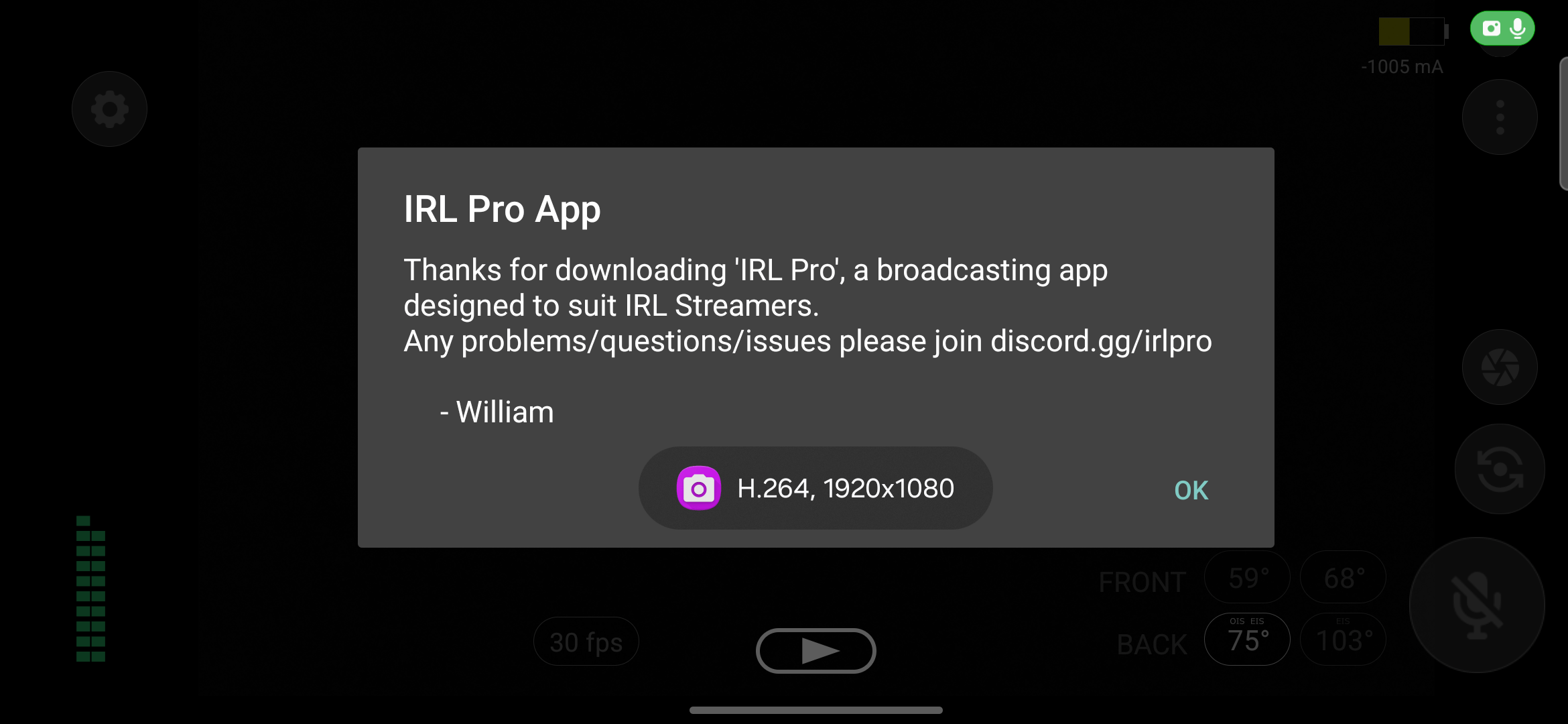 Tap the gear (top left), then **Connections**, then **New connection**.
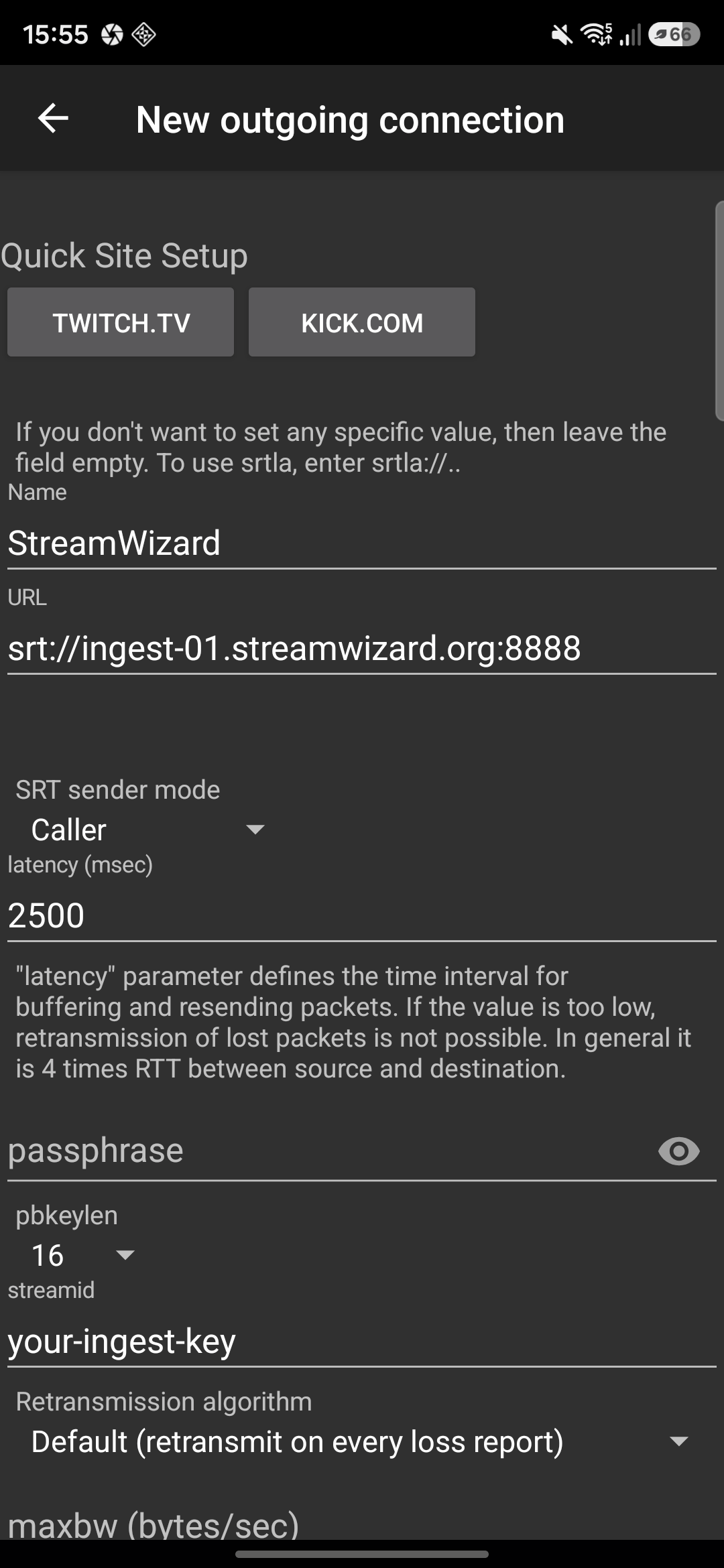
Fill it in with your details from the
[Ingest keys page](https://streamwizard.org/dashboard/irl/ingest):
* **Name**: anything, `StreamWizard` works
* **URL**: `srt://:8888` for SRT, or
`srtla://:5000` for SRTLA
* **streamid**: your ingest key
The key goes in the **streamid** field, not in the URL. If you paste a
URL with `?streamid=` in it, IRL Pro refuses it and asks you to move the
key. Sending the key to yourself with the Discord DM button beats typing
64 characters on a phone keyboard.
Leave the rest alone. The defaults (sender mode Caller, latency 2500 ms)
work with StreamWizard as they are.
Tap the gear (top left), then **Connections**, then **New connection**.
Fill it in with your details from the
[Ingest keys page](https://streamwizard.org/dashboard/irl/ingest):
* **Name**: anything, `StreamWizard` works
* **URL**: `srt://:8888` for SRT, or
`srtla://:5000` for SRTLA
* **streamid**: your ingest key
The key goes in the **streamid** field, not in the URL. If you paste a
URL with `?streamid=` in it, IRL Pro refuses it and asks you to move the
key. Sending the key to yourself with the Discord DM button beats typing
64 characters on a phone keyboard.
Leave the rest alone. The defaults (sender mode Caller, latency 2500 ms)
work with StreamWizard as they are.
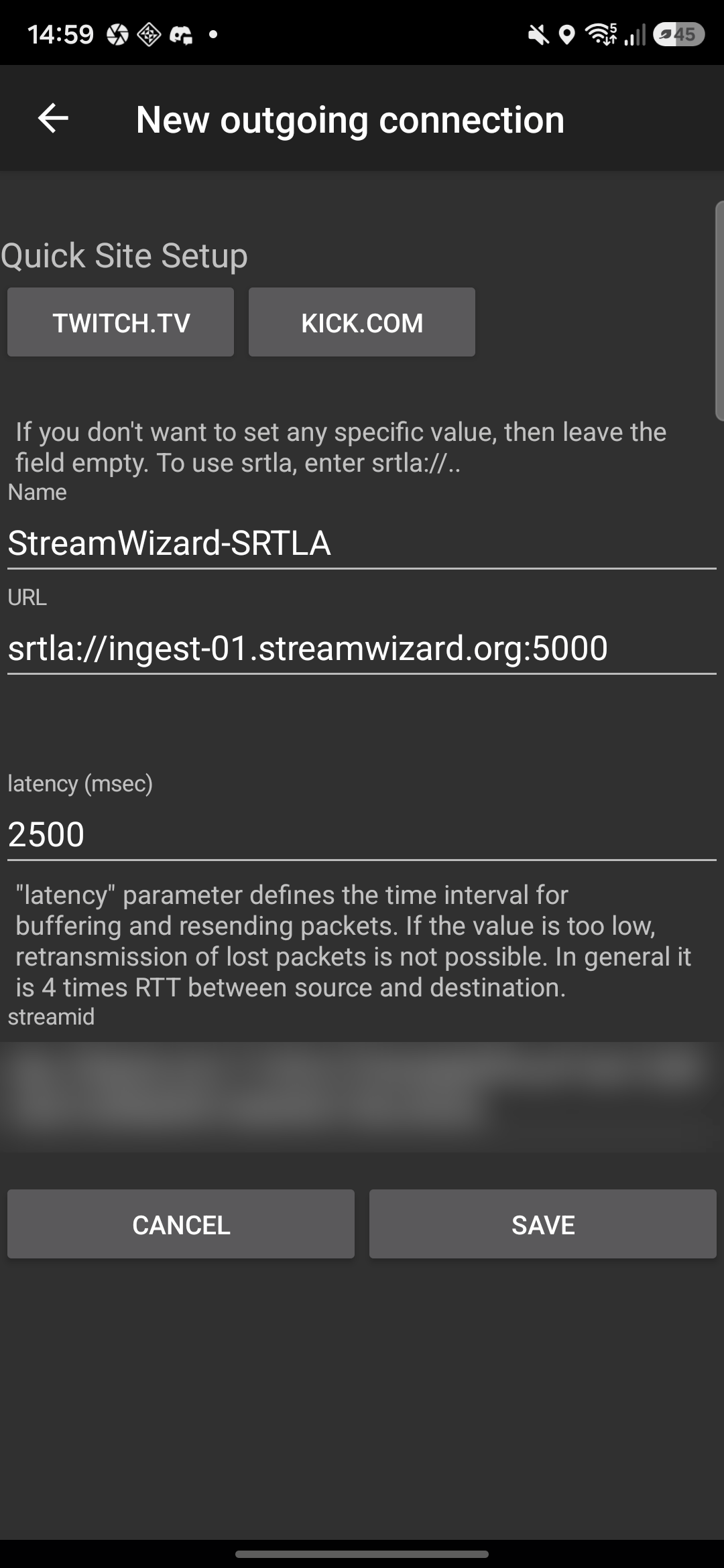 Hit **Save**. You can keep both an SRT and an SRTLA connection saved and
tick whichever one this stream needs. Only one is active at a time, and
a long hold on a connection edits it.
Hit **Save**. You can keep both an SRT and an SRTLA connection saved and
tick whichever one this stream needs. Only one is active at a time, and
a long hold on a connection edits it.
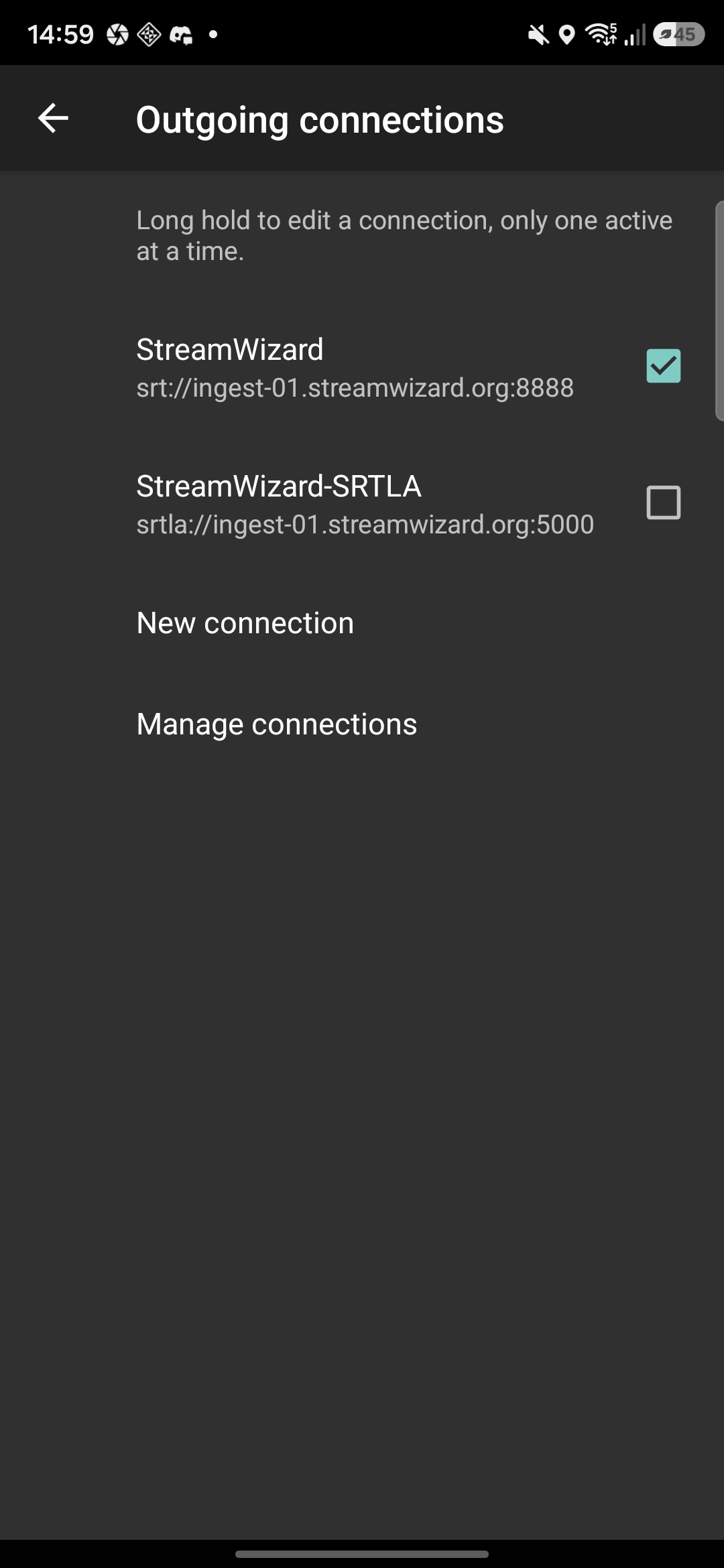 Nothing to configure. An `srtla://` connection bonds natively: IRL Pro
splits the stream across your available networks (say mobile data plus
WiFi) and the StreamWizard ingest puts it back together. The start
dialog even tells you: "Connection supports native bonding."
To tune which networks it may use and their relative weights, see
settings, **Bonding**, under **Advanced Bonding Settings**.
One thing to skip: the **Connection Bonding** toggle on the connection
itself. That's IRL Pro's built-in bonding service for servers that don't
speak SRTLA. StreamWizard does, so leave it off and let the `srtla://`
URL do the work.
Tap the round button at the bottom and confirm **Start Broadcast**. Your
feed lands in the `IRL` scene of your cloud OBS within a few seconds.
This does not put you on Twitch. The phone streams to your ingest server
and nowhere else, so you can test your connection any time without going
live. To actually go live: start the broadcast here first, then hit **Go
live** on [the deck](/irl/deck), which is what starts your cloud OBS
streaming to Twitch.
The Cloud OBS page shows what's arriving, which is the quickest way to
tell whether the phone side is working:
Nothing to configure. An `srtla://` connection bonds natively: IRL Pro
splits the stream across your available networks (say mobile data plus
WiFi) and the StreamWizard ingest puts it back together. The start
dialog even tells you: "Connection supports native bonding."
To tune which networks it may use and their relative weights, see
settings, **Bonding**, under **Advanced Bonding Settings**.
One thing to skip: the **Connection Bonding** toggle on the connection
itself. That's IRL Pro's built-in bonding service for servers that don't
speak SRTLA. StreamWizard does, so leave it off and let the `srtla://`
URL do the work.
Tap the round button at the bottom and confirm **Start Broadcast**. Your
feed lands in the `IRL` scene of your cloud OBS within a few seconds.
This does not put you on Twitch. The phone streams to your ingest server
and nowhere else, so you can test your connection any time without going
live. To actually go live: start the broadcast here first, then hit **Go
live** on [the deck](/irl/deck), which is what starts your cloud OBS
streaming to Twitch.
The Cloud OBS page shows what's arriving, which is the quickest way to
tell whether the phone side is working:
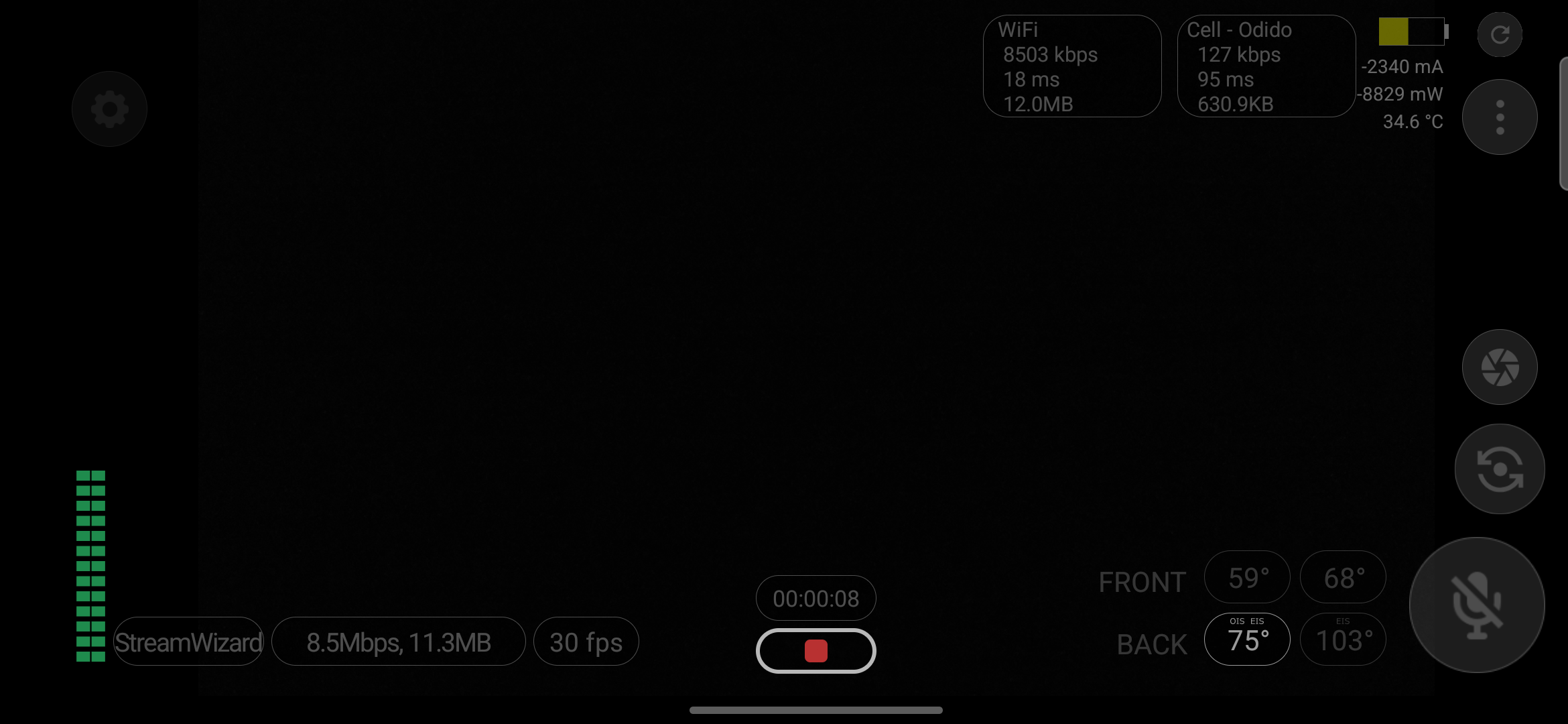
 While you're sending, the app's overlay shows your connection name,
bitrate, and a timer. On SRTLA you also get a card per network with its
bitrate and ping, so you can watch the bond do its thing.
While you're sending, the app's overlay shows your connection name,
bitrate, and a timer. On SRTLA you also get a card per network with its
bitrate and ping, so you can watch the bond do its thing.
 To pause instead of stopping (black screen and mute, broadcast stays
up), long-press the stop button. Tap again to resume.
## Recommended settings
IRL Pro's defaults are close to right for StreamWizard. Here's what to check
per section, and the few things worth changing.
### Video
Settings, **Video**.
* **Resolution**: 1920x1080 (16:9). The cloud OBS canvas is 1080p, so
there's nothing to gain from streaming higher.
* **FPS**: System default lands on 30, and 30 is the right call for IRL.
Smoother motion doesn't survive a moving connection; the bitrate is
better spent on image quality.
* **Keyframe frequency**: 2 seconds, leave it. That's what the ingest and
the auto switcher expect.
* **Adaptive bitrate mode**: keep **Recommended**. IRL Pro drops quality
before dropping frames, and the [auto switcher](/irl/auto-switcher)
handles the rest server-side. Leave **Adaptive frame rate** off; the app
itself warns it can cause issues.
* **Stabilization**: EIS and OIS both on. You're walking, your footage
shouldn't look like it.
To pause instead of stopping (black screen and mute, broadcast stays
up), long-press the stop button. Tap again to resume.
## Recommended settings
IRL Pro's defaults are close to right for StreamWizard. Here's what to check
per section, and the few things worth changing.
### Video
Settings, **Video**.
* **Resolution**: 1920x1080 (16:9). The cloud OBS canvas is 1080p, so
there's nothing to gain from streaming higher.
* **FPS**: System default lands on 30, and 30 is the right call for IRL.
Smoother motion doesn't survive a moving connection; the bitrate is
better spent on image quality.
* **Keyframe frequency**: 2 seconds, leave it. That's what the ingest and
the auto switcher expect.
* **Adaptive bitrate mode**: keep **Recommended**. IRL Pro drops quality
before dropping frames, and the [auto switcher](/irl/auto-switcher)
handles the rest server-side. Leave **Adaptive frame rate** off; the app
itself warns it can cause issues.
* **Stabilization**: EIS and OIS both on. You're walking, your footage
shouldn't look like it.
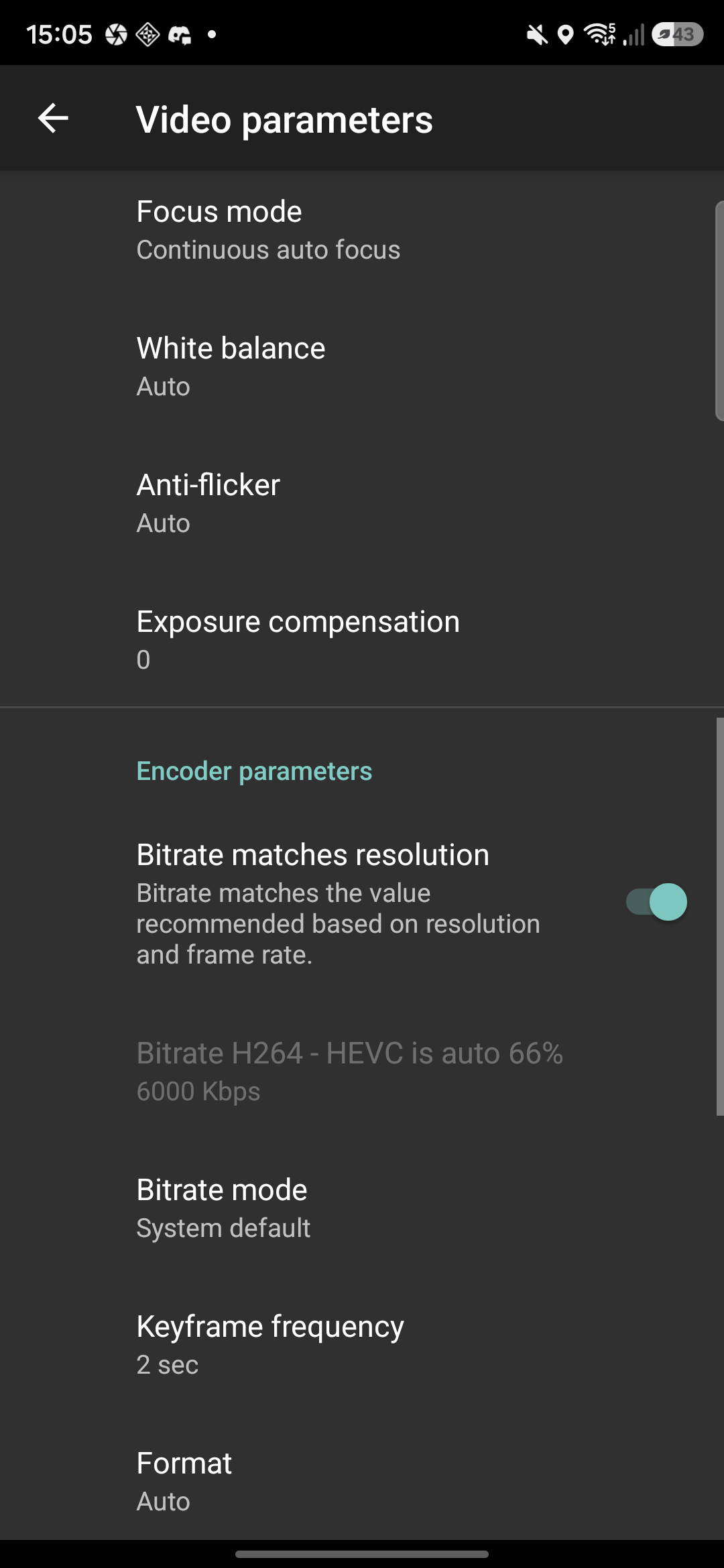 #### H.264 or HEVC
The **Format** setting picks the codec, and it's worth a thought. HEVC gives
you the same picture at roughly two thirds of the bitrate; IRL Pro even
scales its auto bitrate to 66% when HEVC is active. On a moving connection
that's the difference between holding 1080p and dropping quality, so on any
phone from the last few years: use HEVC.
Codec compatibility with Twitch is not a concern here. Your phone only
streams to the StreamWizard ingest; your cloud OBS decodes it and encodes a
fresh stream for Twitch. What Twitch supports never depends on what your
phone sends.
Leave **Format** on Auto if you'd rather not think about it. It picks a
hardware encoder, which is what keeps your phone from cooking itself.
#### Bitrate
**Bitrate matches resolution** is on by default and picks 6000 Kbps for
1080p30 H.264 (about 4000 for HEVC), then adaptive bitrate works downward
from there when your connection dips. That's the right setup for most
streams: high ceiling, automatic floor.
Set a manual bitrate only when you know the ceiling is the problem:
* **Strong 5G, dense coverage**: leave the automatic 6000 alone.
* **Mixed urban routes**: 3500 to 4500 Kbps. A ceiling your connection can
actually hold beats constant adaptive swings.
* **Rural, festivals, crowded events**: 2000 to 2500 Kbps. Congested cells
choke uploads long before they show fewer bars.
And keep perspective: viewers forgive a softer picture, they don't forgive
a stream that keeps freezing. When in doubt, aim lower.
### Audio
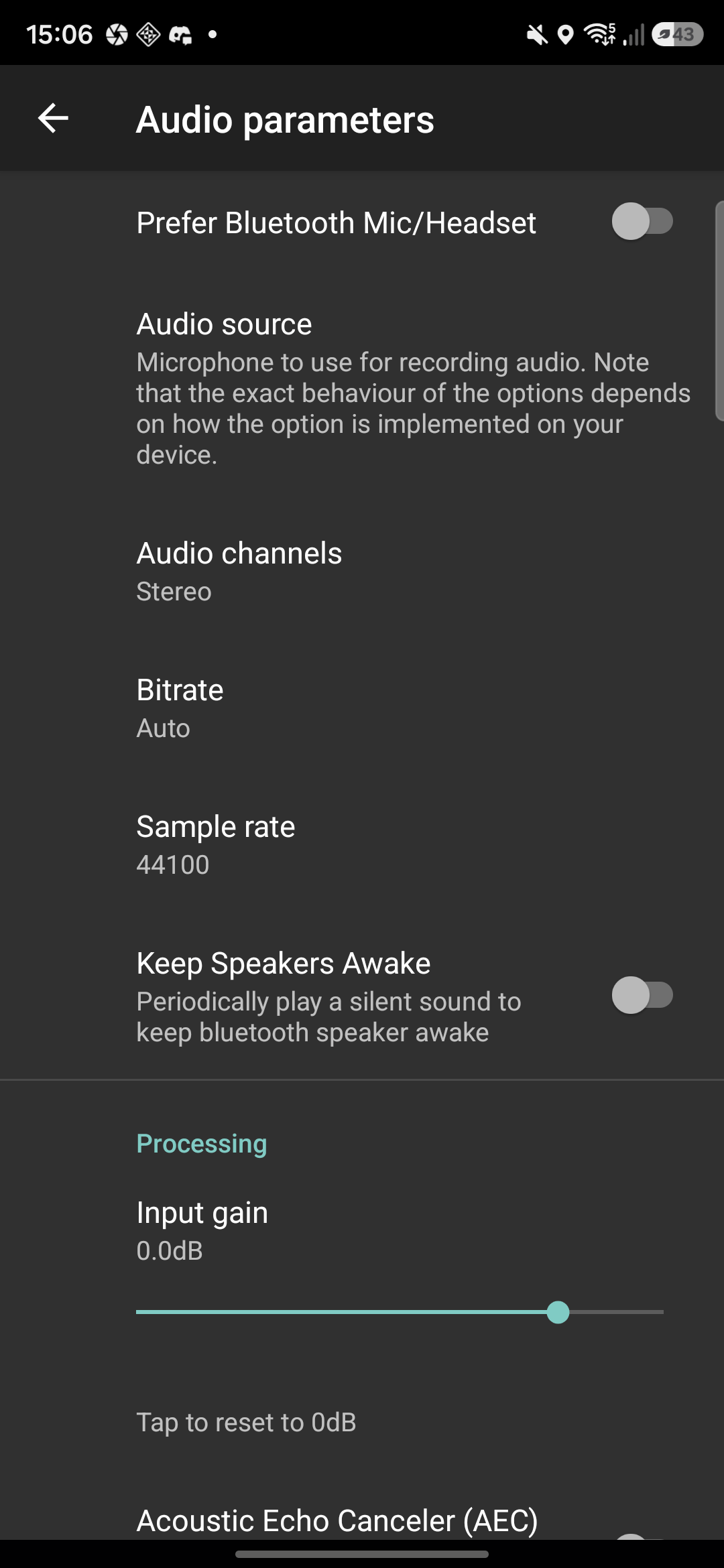
Settings, **Audio**. The defaults (stereo, auto bitrate, 44100) are fine as
they are.
* **Prefer Bluetooth Mic/Headset**: on if you stream with a BT mic. Off
otherwise, or Android may grab some earbuds' terrible mic instead of the
phone's.
* **Acoustic Echo Canceler and Noise Suppressor**: leave both off. They're
built for voice calls and they eat the street sounds that make IRL feel
live. Turn NS on only if wind noise ruins your audio more than it helps.
* **Input gain**: 0 dB until you have a reason. Check your levels on the
meter on the main screen, left edge.
#### H.264 or HEVC
The **Format** setting picks the codec, and it's worth a thought. HEVC gives
you the same picture at roughly two thirds of the bitrate; IRL Pro even
scales its auto bitrate to 66% when HEVC is active. On a moving connection
that's the difference between holding 1080p and dropping quality, so on any
phone from the last few years: use HEVC.
Codec compatibility with Twitch is not a concern here. Your phone only
streams to the StreamWizard ingest; your cloud OBS decodes it and encodes a
fresh stream for Twitch. What Twitch supports never depends on what your
phone sends.
Leave **Format** on Auto if you'd rather not think about it. It picks a
hardware encoder, which is what keeps your phone from cooking itself.
#### Bitrate
**Bitrate matches resolution** is on by default and picks 6000 Kbps for
1080p30 H.264 (about 4000 for HEVC), then adaptive bitrate works downward
from there when your connection dips. That's the right setup for most
streams: high ceiling, automatic floor.
Set a manual bitrate only when you know the ceiling is the problem:
* **Strong 5G, dense coverage**: leave the automatic 6000 alone.
* **Mixed urban routes**: 3500 to 4500 Kbps. A ceiling your connection can
actually hold beats constant adaptive swings.
* **Rural, festivals, crowded events**: 2000 to 2500 Kbps. Congested cells
choke uploads long before they show fewer bars.
And keep perspective: viewers forgive a softer picture, they don't forgive
a stream that keeps freezing. When in doubt, aim lower.
### Audio
Settings, **Audio**. The defaults (stereo, auto bitrate, 44100) are fine as
they are.
* **Prefer Bluetooth Mic/Headset**: on if you stream with a BT mic. Off
otherwise, or Android may grab some earbuds' terrible mic instead of the
phone's.
* **Acoustic Echo Canceler and Noise Suppressor**: leave both off. They're
built for voice calls and they eat the street sounds that make IRL feel
live. Turn NS on only if wind noise ruins your audio more than it helps.
* **Input gain**: 0 dB until you have a reason. Check your levels on the
meter on the main screen, left edge.
 ### Streamer (chat on your screen)
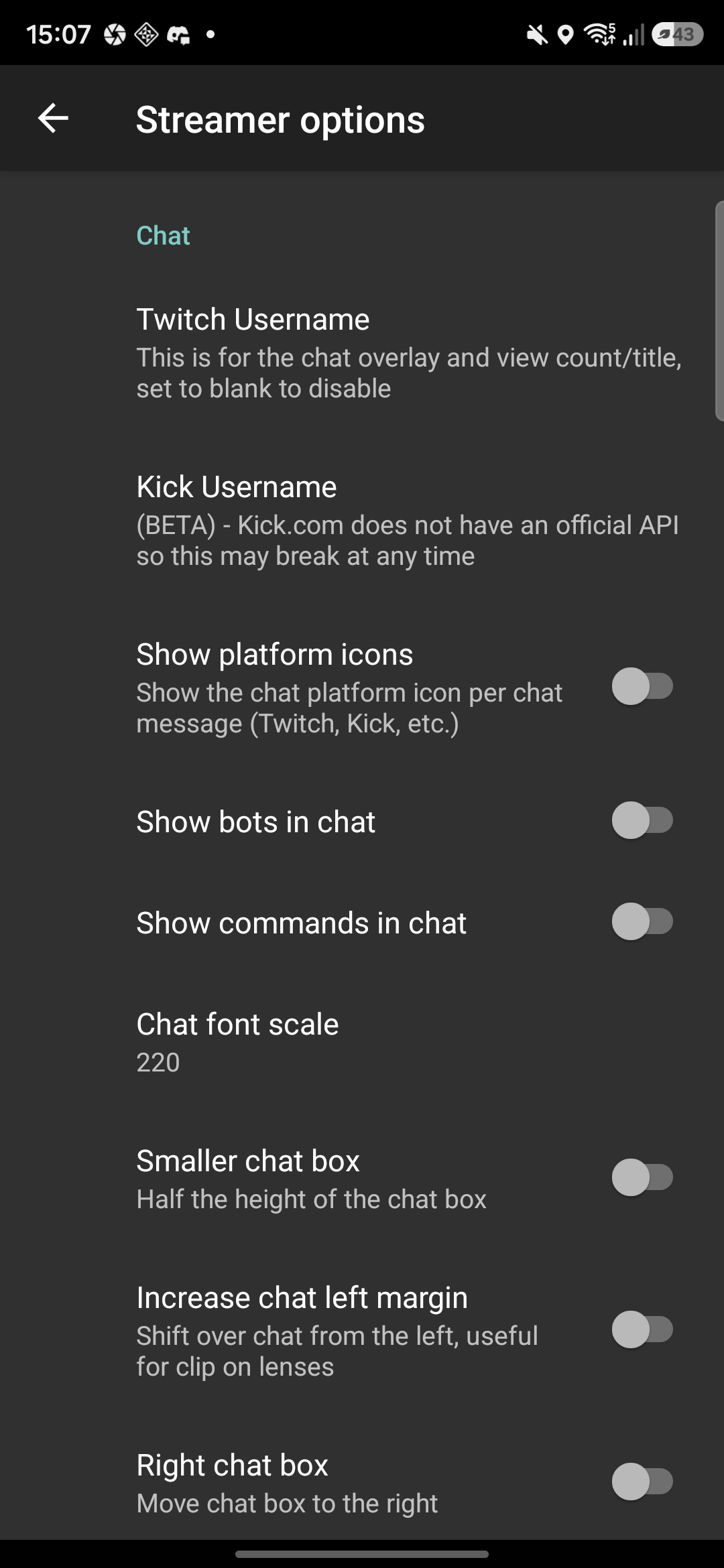
Settings, **Streamer**. This puts your chat and viewer count on the phone
screen while you stream.
* **Twitch Username**: set it to your channel. That's all chat overlay and
view count need. Blank disables it.
* **Chat font scale** and **Smaller chat box**: size to taste; you'll be
reading this at arm's length in sunlight, bigger is usually right.
* **Show bots in chat**: off, unless you enjoy reading your own bot.
### Streamer (chat on your screen)
Settings, **Streamer**. This puts your chat and viewer count on the phone
screen while you stream.
* **Twitch Username**: set it to your channel. That's all chat overlay and
view count need. Blank disables it.
* **Chat font scale** and **Smaller chat box**: size to taste; you'll be
reading this at arm's length in sunlight, bigger is usually right.
* **Show bots in chat**: off, unless you enjoy reading your own bot.
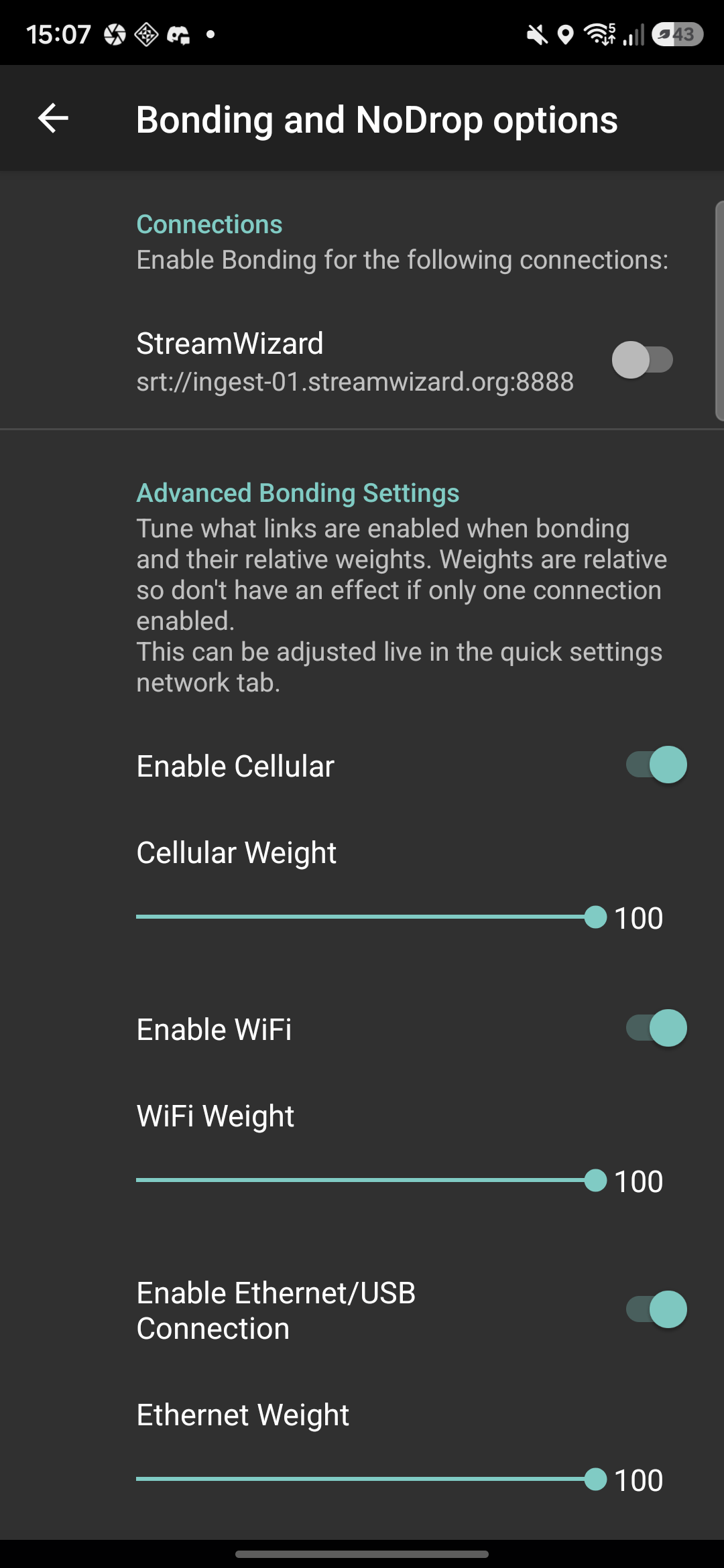
 ### Bonding
Settings, **Bonding**, under **Advanced Bonding Settings**. Only matters for
SRTLA connections.
* **Enable Cellular / WiFi / Ethernet**: leave all on. A link that's enabled
but absent costs nothing; a link that's disabled can't save you.
* **Weights**: all 100 by default, and weights are relative, so equal
weights just means "use what works". Lower one only when a link is
present but untrustworthy, say hotel WiFi that dies every few minutes:
drop WiFi to 20 and the bond leans on cellular while still using the WiFi
headroom.
* You can adjust links and weights **live during a stream** from the quick
settings network tab, no need to stop.
* Ethernet/USB covers tethered modems and backpack rigs.
### Bonding
Settings, **Bonding**, under **Advanced Bonding Settings**. Only matters for
SRTLA connections.
* **Enable Cellular / WiFi / Ethernet**: leave all on. A link that's enabled
but absent costs nothing; a link that's disabled can't save you.
* **Weights**: all 100 by default, and weights are relative, so equal
weights just means "use what works". Lower one only when a link is
present but untrustworthy, say hotel WiFi that dies every few minutes:
drop WiFi to 20 and the bond leans on cellular while still using the WiFi
headroom.
* You can adjust links and weights **live during a stream** from the quick
settings network tab, no need to stop.
* Ethernet/USB covers tethered modems and backpack rigs.
 ### The rest
* **Keep streaming when not in focus** (Video, background streaming): on,
so checking a map doesn't end your stream.
* **Keep screen off streaming**: on, unless you like hip-streaming your
pocket.
## It's not connecting
* Key just rotated? The old key is dead, copy the new one into streamid.
* Protocol and port must match: SRT is 8888, SRTLA is 5000. An `srt://` URL
on port 5000 (or the reverse) connects to nothing.
* Container stopped? The ingest accepts your feed either way, but you'll see
nothing in OBS until you [start the container](/irl/cloud-obs#the-container).
## Next
Your feed is in. Now [learn the deck](/irl/deck), the thing you'll actually
be staring at mid-stream.
### The rest
* **Keep streaming when not in focus** (Video, background streaming): on,
so checking a map doesn't end your stream.
* **Keep screen off streaming**: on, unless you like hip-streaming your
pocket.
## It's not connecting
* Key just rotated? The old key is dead, copy the new one into streamid.
* Protocol and port must match: SRT is 8888, SRTLA is 5000. An `srt://` URL
on port 5000 (or the reverse) connects to nothing.
* Container stopped? The ingest accepts your feed either way, but you'll see
nothing in OBS until you [start the container](/irl/cloud-obs#the-container).
## Next
Your feed is in. Now [learn the deck](/irl/deck), the thing you'll actually
be staring at mid-stream.