> ## Documentation Index
> Fetch the complete documentation index at: https://docs.streamwizard.org/llms.txt
> Use this file to discover all available pages before exploring further.
# Clips overview
> Where your highlights stop being a wall of thumbnails. Pick a layout, sync new clips, and get to work.
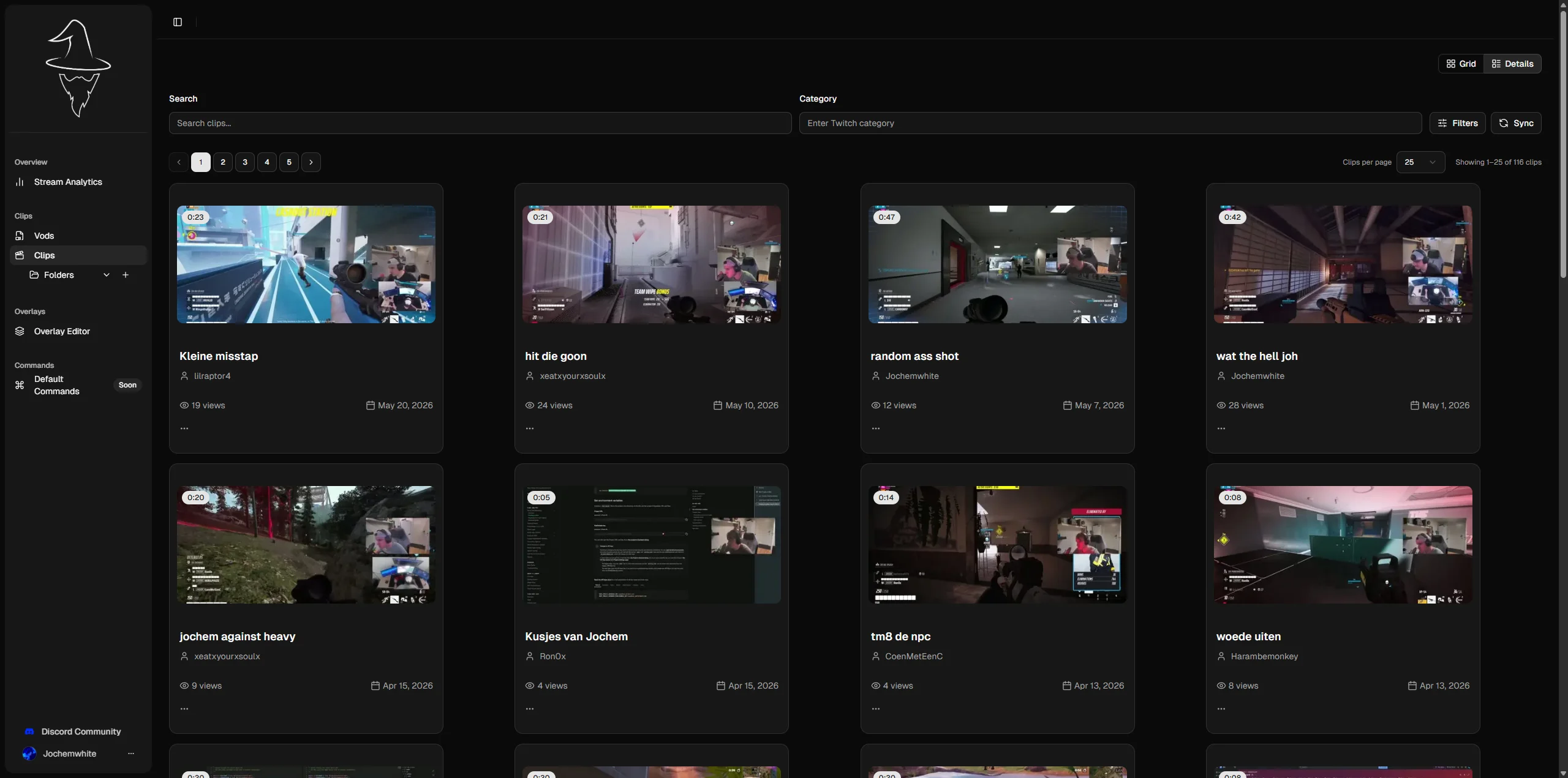
The clips page is where your highlights stop being a wall of thumbnails. Filter
them down, sort them how you think, and drop them into folders. This is the part
of StreamWizard you'll actually live in.
 ## Grid or details
Top right of the page, a toggle switches between two layouts:
* **Grid:** thumbnail cards. Good for skimming visually.
* **Details:** a denser, row-based list. Good when you're scanning titles,
views, and dates.
Your choice rides along in the URL, so a bookmarked or shared link keeps the
same view.
## Pulling in new clips
The **Sync** button next to the filters fetches your latest clips from Twitch on
demand. Handy if you didn't turn on auto-sync during
[onboarding](/onboarding), or you just finished a stream and don't want to wait.
## Where to next
* [Filtering your clips](/clips/filtering) — narrow a wall of thumbnails down to
the one moment you're after.
* [Folders](/clips/folders) — file clips away so you find them later instead of
scrolling past them.
## Grid or details
Top right of the page, a toggle switches between two layouts:
* **Grid:** thumbnail cards. Good for skimming visually.
* **Details:** a denser, row-based list. Good when you're scanning titles,
views, and dates.
Your choice rides along in the URL, so a bookmarked or shared link keeps the
same view.
## Pulling in new clips
The **Sync** button next to the filters fetches your latest clips from Twitch on
demand. Handy if you didn't turn on auto-sync during
[onboarding](/onboarding), or you just finished a stream and don't want to wait.
## Where to next
* [Filtering your clips](/clips/filtering) — narrow a wall of thumbnails down to
the one moment you're after.
* [Folders](/clips/folders) — file clips away so you find them later instead of
scrolling past them.